






Facebook Twitter Instagram
    Trending
    • How to Restore Factory Settings After an Android Phone Displays a Blue Screen
    • Once They Ban Disposables, Will I Still Be Able to Buy Big-Puff Vapes?
    • Vozol Star Click 50K Kit Review: Advanced Features and Design
    • Elf Bar Ice King Pro 40K Kit Review: Smart Features and Modern Design
    • Lost Mary Tappo 2 Prefilled Pod Kit Review: Compact Design and Modern Features
    • Vozol Nex Max Pod Kit Review: Touchscreen Design and Advanced Features
    • ATVS AL SAHIM 200K Kit Review: High-Capacity Design and Smart Features
    • Fumot Aura Pro Pod Kit Review: Design, Features, and Performance
    Facebook YouTube
    IGeeKphone China Phone, Tablet PC, VR, RC Drone News, Reviews
    • HOME
      • NEWS
        • DeepSeek
        • ChatGPT
        • Minecraft
    • Amazon
    • PHONE
      • Top Phones For Your First Choice
      • Phone Comparison
      • Xiaomi
      • Blackview
      • Doogee
      • Black Shark
      • Geekbuying
      • Banggood
      • TEMU
      • TikTok
      • Aliexpress
      • Walmart
      • MercadoLibre
      • Lazada
    • TOP VAPE Awards for 2026
    • VAPES
      • E-CIGAR Upcoming
      • Vape News
      • Vape Deals
      • Vape Comparison
      • Vape Guide
      • Giveaway
    • BEST VAPE
      • Best Vape Stores
      • Best Starter Vape Kits
      • Best Vapes for Beginners
      • Best Disposable Vapes
      • Best Pod Systems
      • Best Pod Mod Vapes
      • Best Mods
      • Best Nicotine Pouches
      • Best Clearomizers/Tanks
      • Best E-Liquid
      • Best EGO/Pens
      • Best Vapes for Nic Salt E-Juice
      • Best Vapes to Quit Smoking
      • RDA vs. RDTA vs. RTA
    • Best Vape Brand 2026
      • VAPORESSO
      • VOOPOO
      • OXVA
      • NEXA BAR
      • MASKKING VAPE
      • SP2S
      • IPLAY
      • TODOO
      • MRFOG
      • LOSTVAPE
      • VEIIK
    • REVIEW
      • E-cigar Review
      • Phones
      • Tablet PC
      • TV Box
      • RC Drone
      • Wearables
      • Camera
      • Accessories
      • VR Headset
    • MORE
      • TABLET
        • Chuwi
        • INNOCN
        • Teclast
        • Top Tablet for Your First Choice
        • Tablet/Laptop Comparison
      • RC DRONE
      • CAMERA
      • WEARABLES
        • OneOdio
        • BlitzWolf
        • Top Smartwatch for First Choice
      • 3D PRINTER
        • 3D Printer Review
        • Anycubic
        • FLSUN
        • Xtool
        • LONGER
        • Top 3D printer to Choose First
      • POWER STATION
        • Oukitel
        • FOSSIBOT
      • GAMING
        • Top Gaming Products
      • E-BIKE
        • Samebike
        • Happyrun
        • ENGWE
      • SMART HOME
      • TV BOX
      • ACCESSORIES
      • VR HEADSET
      • CLOTHES
      • AUTO CAR
    • DEAL
    • VAPE LAWS
    • Shop
    IGeeKphone China Phone, Tablet PC, VR, RC Drone News, Reviews
    You are at:Home»Guide»How to Restore Factory Settings After an Android Phone Displays a Blue Screen
    Guide

    How to Restore Factory Settings After an Android Phone Displays a Blue Screen

    Brady CottonBy Brady CottonJuly 6, 2026
    Facebook Twitter Pinterest LinkedIn Tumblr Email

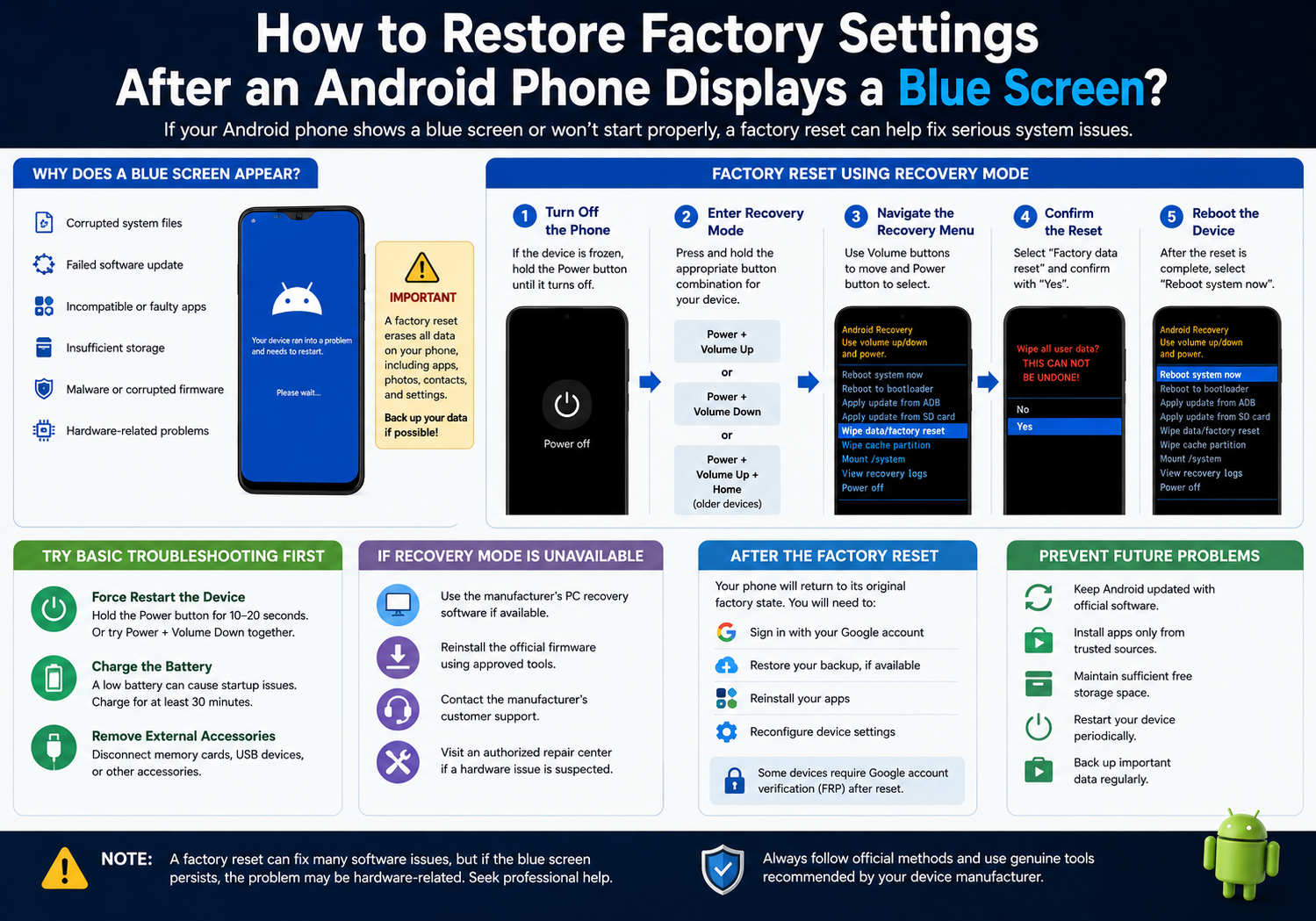
    A blue screen on an Android phone can be alarming, especially if the device becomes unresponsive or repeatedly crashes. While Android devices do not typically display the same “Blue Screen of Death” associated with Windows computers, some manufacturers may show a blue screen or a blue-tinted error display when a serious system issue occurs. If basic troubleshooting does not resolve the problem, performing a factory reset may help restore the device to working condition.

    Before proceeding, it’s important to understand that a factory reset erases all personal data stored on the device, including apps, photos, contacts, and settings. If possible, back up your data before resetting the phone.

    Common Causes of a Blue Screen

    A blue screen or similar system error may result from several issues, including:

    • Corrupted system files
    • A failed software update
    • Incompatible or malfunctioning apps
    • Insufficient system storage
    • Hardware-related problems
    • Malware or corrupted firmware

    Identifying the underlying cause can help determine whether a factory reset is the appropriate solution.

    Try Basic Troubleshooting First

    Before performing a factory reset, try these simpler solutions:

    Force Restart the Device

    Press and hold the Power button for about 10–20 seconds. On some devices, you may need to hold the Power and Volume Down buttons simultaneously until the phone restarts.

    Charge the Battery

    A critically low battery can sometimes cause startup problems. Connect the phone to its original charger and allow it to charge for at least 30 minutes before attempting to turn it on again.

    Remove External Accessories

    Disconnect memory cards, USB accessories, or other connected devices that could interfere with the startup process.

    How to Factory Reset Using Recovery Mode

    If the phone cannot boot normally, you can usually perform a factory reset through Android Recovery Mode.

    Step 1: Turn Off the Phone

    If the device is frozen, force it to power off by holding the Power button until the screen turns off.

    Step 2: Enter Recovery Mode

    The button combination varies by manufacturer, but common methods include:

    • Power + Volume Up
    • Power + Volume Down
    • Power + Volume Up + Home (older devices)

    Hold the required buttons until the manufacturer’s logo appears, then release them when the Recovery Mode menu opens.

    Step 3: Navigate the Recovery Menu

    Use the Volume Up and Volume Down buttons to move through the menu, and use the Power button to confirm selections.

    Select:

    Wipe data/factory reset

    Step 4: Confirm the Reset

    Choose Factory data reset or Yes when prompted.

    The phone will begin erasing all user data and restoring the factory software configuration.

    Step 5: Reboot the Device

    After the reset is complete, select:

    Reboot system now

    The first startup may take several minutes while Android rebuilds system files.

    If Recovery Mode Is Unavailable

    If you cannot access Recovery Mode, you may still have other options:

    • Use the manufacturer’s PC recovery software if available.
    • Reinstall the official firmware using approved tools.
    • Contact the device manufacturer’s customer support.
    • Visit an authorized repair center if a hardware issue is suspected.

    What Happens After a Factory Reset?

    Once the reset is complete, the phone returns to its original factory state. You will need to:

    • Sign in with your Google account.
    • Restore your backup, if available.
    • Reinstall apps.
    • Reconfigure device settings.

    Some devices also require Factory Reset Protection (FRP) verification, meaning you’ll need to sign in with the Google account previously associated with the phone.

    Preventing Future System Problems

    To reduce the likelihood of future startup issues:

    • Keep Android updated with official software releases.
    • Install apps only from trusted sources.
    • Maintain sufficient free storage space.
    • Restart your device periodically.
    • Back up important data regularly.

    Conclusion

    A factory reset can often resolve serious software issues that prevent an Android phone from starting properly, including certain blue-screen-related problems caused by corrupted system files or failed updates. However, because the process erases all personal data, it should generally be considered after simpler troubleshooting methods have been attempted. If the problem persists even after a factory reset, the device may require firmware reinstallation or professional hardware diagnosis.

    Share. Facebook Twitter Pinterest LinkedIn Tumblr Email

    Related Posts

    Automotive Dealership Security Monitoring: Safeguarding Valuable Assets

    How to Repair a Malfunctioning 2026 Desktop Computer System with a Damaged Hard Drive

    What factors should be considered when selecting the ideal beginner drone?

    Leave A Reply Cancel Reply

    You must be logged in to post a comment.

    voopoopintch
    oxva nexlim 2
    sp2s sen x disposable vape
    • Popular
    • 3D Printer REVIEW
    • XIAOMI
    June 21, 2026

    iPlay LUMO 8K Review – A Compact Prefilled Pod Kit with Big Flavor and Everyday Convenience

    June 21, 2026

    iPlay HOOLA 150K Review – A Cloud-Chasing Giant with Music, Modes & Massive Longevity

    June 21, 2026

    Vaporesso VIBE SE 2 Review – Simple on the Outside, Surprisingly Smart on the Inside

    June 21, 2026

    VOOPOO DRAG H40 Pro Review – The Return of the Pocket Powerhouse

    December 26, 2025

    ACMER ASCARVA 4S: Precision CNC Power for Makers, DIYers & Small Workshops

    June 23, 2024

    ACMER P2 20W Laser Engraver Fixed Focus Engraving: Hands on Review

    May 30, 2024

    xTool F1 Ultra Review: World’s First 20W Fiber & 20W Diode Laser Engraver

    May 30, 2024

    Anycubic Kobra 3 Combo Review: The Multicolor Masterpiece?

    July 6, 2026

    Xiaomi 18 Pro Max is packed with luxurious features: its price is set to increase

    July 3, 2026

    See you in August! The Appearance of Redmi K100 series fully matches that of iPhone 18 Pro

    July 3, 2026

    Flash Sale Alert: Upgrade Your TV with the Xiaomi TV Box S 3rd Gen at $79.99– 4K Entertainment at an Unbeatable Price!

    July 2, 2026

    Xiaomi Wireless Mouse 4 Pro Released: First to Feature TOG Global Sensor, priced at 199 yuan

    fc 26 coins
    New Arrivals
    • Vozol Star Click 50K Kit Vozol Star Click 50K Kit
    • Elf Bar Ice King Pro 40K Kit Elf Bar Ice King Pro 40K Kit
    • Lost Mary Tappo 2 Prefilled Pod Kit Lost Mary Tappo 2 Prefilled Pod Kit
    • Vozol Nex Max Pod Kit Vozol Nex Max Pod Kit
    • ATVS AL SAHIM 200K Kit ATVS AL SAHIM 200K Kit
    • Fumot Aura Pro Pod Kit Fumot Aura Pro Pod Kit
    • VEEPON VeeX Pod System Kit 40W VEEPON VeeX Pod System Kit 40W
    • Samsung Galaxy Z TriFold 2 Samsung Galaxy Z TriFold 2
    • Redmi Note 16 4G Redmi Note 16 4G
    About
  • Igeekphone.com provides the first global tech news and reviews about smartphone, vapes, e-cigar, smart home, 3D printers, e-bike,tablets, RC drones, VR headset, and other accessories. It's the best platform to improve your brand and product.
  • Contact us: info@igeekphone.com
  • Check Our Privacy Policy Here.
  • Note: *Right now we have US editor and EU editors for review, especially for Amazon US and EU.
  • *Shop and Compare Price Here*
  • Facebook
  • Youtube
  • Mashable is a global, multi-platform media and entertainment company

    For more queries and news contact us on this

    Email: info@mashablepartners.com

  • OUR BEST VAPE PARTNERS
  • VAPE ONLINE STORE
  • HAYATI PRO MAX PLUS
  • VAPORESSO
  • VOOPOO
  • OXVA
  • NEXA
  • MASKKING
  • SP2S
  • IPLAY
  • TODOO
  • OTHER BEST PARTNERS
  • SVBONY
  • Chuwi
  • Blackview
  • Fossibot
  • Unihertz
  • Flsun
  • Anycubic
  • Xtool
  • Oukitel
  • Mukkpet Ebike
  • Ugreen
  • Copyright © 2026 igeekphone

    Type above and press Enter to search. Press Esc to cancel.