









Apple’s first foldable iPhone is expected to introduce a new level of multitasking by taking advantage of its larger flexible display. Among the most anticipated features is App Split View, which allows users to run two apps side by side, making the foldable iPhone a far more capable productivity device than a traditional smartphone.
If you’re new to foldable devices, here’s everything you need to know about using App Split View on Apple’s foldable iPhone.
What Is App Split View?
App Split View is a multitasking feature that lets you open and interact with two compatible apps simultaneously on the foldable display. Instead of constantly switching between applications, you can work with both at the same time.
For example, you can:
- Browse Safari while taking notes
- Watch YouTube while chatting in Messages
- Compare documents side by side
- Drag photos into Mail
- Copy text from one app into another
- Manage your calendar while replying to emails
The larger foldable screen makes these tasks far more comfortable than on a standard smartphone.
How to Open Split View
Although Apple has yet to officially detail the interface, the expected workflow will be similar to multitasking on iPadOS.
Step 1: Open Your First App
Launch the app you want to use first, such as Safari, Notes, or Mail.
Step 2: Access the Dock or Multitasking Menu
Swipe up gently from the bottom edge to reveal the Dock or multitasking interface without closing the current app.
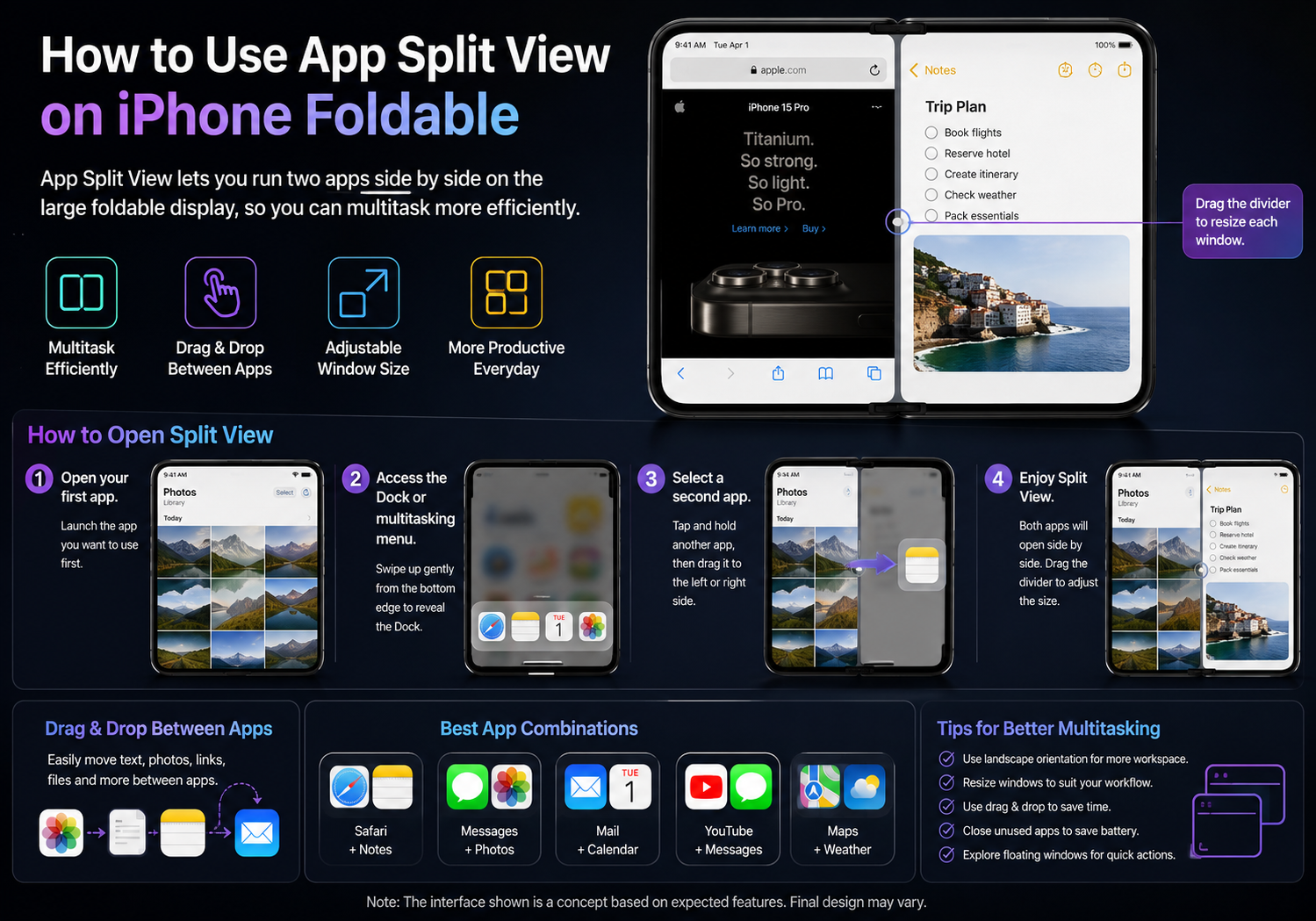
Step 3: Select a Second App
Tap and hold another compatible app, then drag it toward either the left or right side of the display.
The foldable iPhone should automatically arrange both apps into a split-screen layout.
Step 4: Adjust Window Size
Drag the divider between the two apps to resize each window according to your needs.
For example:
- 50/50 split for equal workspace
- 70/30 split when one app requires more room
- Quick resizing while both apps remain active
Drag and Drop Between Apps
One advantage of Split View is seamless drag-and-drop support.
You may be able to:
- Drag images from Photos into Messages
- Move files into the Files app
- Copy text between Notes and Mail
- Share links from Safari directly into messaging apps
- Attach documents to emails without switching screens
This workflow significantly speeds up everyday tasks.
Best App Combinations
Some of the most useful Split View combinations include:
Work & Productivity
- Mail + Calendar
- Notes + Safari
- Files + Pages
- Reminders + Maps
Communication
- Messages + Photos
- FaceTime + Notes
- WhatsApp + Safari
Entertainment
- YouTube + Messages
- Apple Music + Notes
- Podcasts + Safari
Travel
- Maps + Weather
- Translate + Safari
- Booking apps + Notes
Use Floating Windows for More Flexibility
Apple may also allow certain apps to open as floating windows instead of occupying half the screen.
This could let users:
- Reply to a message without leaving another app
- Open Calculator over a spreadsheet
- Watch a video while browsing the web
- Access quick tools without interrupting their workflow
These floating windows would make multitasking even more efficient.
Tips for Better Multitasking
To get the most out of Split View:
- Use landscape orientation for more workspace.
- Pair frequently used apps together.
- Enable drag-and-drop whenever possible.
- Keep one app for reference while working in another.
- Close unused apps to conserve battery life.
Which Apps Support Split View?
Most Apple apps are expected to support multitasking, including:
- Safari
- Messages
- Notes
- Calendar
- Photos
- Files
- Maps
- Music
Many third-party developers are also expected to optimize their apps for Apple’s foldable display, especially productivity, office, and media applications.
Why Foldable iPhones Benefit Most
Unlike conventional smartphones, a foldable iPhone provides nearly tablet-sized screen space when unfolded. This extra display area makes multitasking feel natural rather than cramped.
Whether you’re working, studying, traveling, or simply browsing the web, Split View transforms the foldable iPhone into a more capable mobile productivity device, reducing the need to constantly switch between apps.
Final Thoughts
App Split View is expected to become one of the defining features of Apple’s foldable iPhone. By allowing two apps to run side by side, users can browse, communicate, edit documents, and manage daily tasks more efficiently on the larger flexible display.
While Apple has not yet officially unveiled its foldable iPhone or confirmed the final multitasking interface, Split View is widely expected to play a central role in maximizing the potential of the device’s expansive screen, bringing an iPad-like productivity experience to a pocket-sized form factor.