










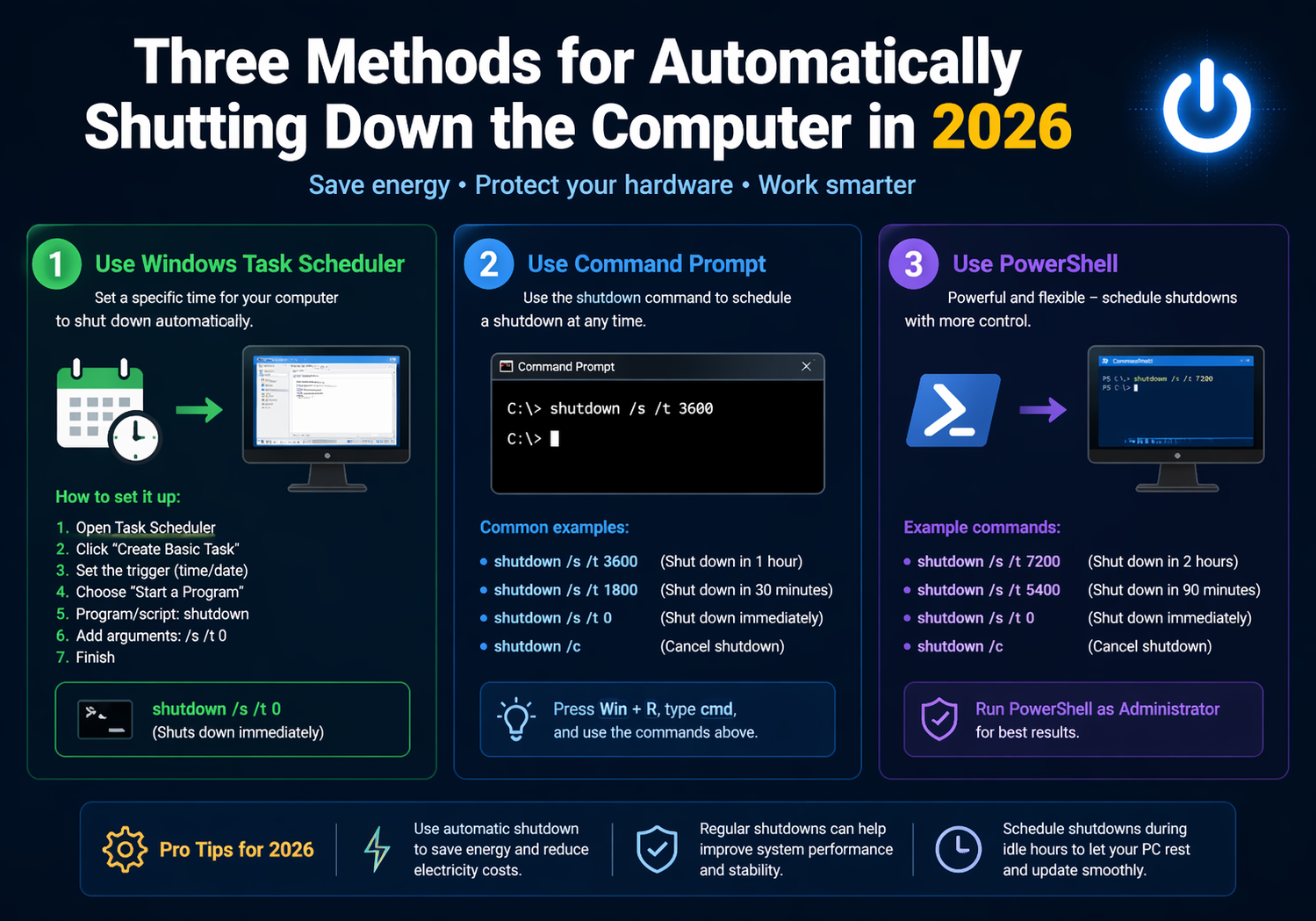
In 2026, the need to automatically shut down your computer has become more relevant than ever. Whether you want to save energy, schedule system maintenance, or ensure your device is powered off at a specific time for security reasons, there are several ways to automate this task. Thankfully, modern technology offers efficient, user-friendly solutions to set up automatic shutdowns. In this article, we’ll explore three effective methods for automatically shutting down your computer in 2026.
1. Using the Built-in Task Scheduler in Windows
Windows operating systems have long offered a built-in Task Scheduler, and it’s still one of the most powerful tools for automating tasks like shutting down your computer. In 2026, Task Scheduler has become even more refined, allowing for more advanced scheduling and trigger options.
How to Use Task Scheduler to Automatically Shut Down Your Computer:
- Open Task Scheduler:
- Press the Windows key and search for “Task Scheduler.”
- Click on the Task Scheduler app to open it.
- Create a New Task:
- In the right panel, click Create Basic Task.
- Enter a name for your task, like “Auto Shutdown,” and click Next.
- Choose a Trigger:
- You can select various triggers such as daily, weekly, or when the computer is idle. For a one-time shutdown, select Once, and set the desired time.
- Select Action:
- Choose Start a Program, and then browse for the program shutdown.exe, which is located in the System32 folder. This is the default executable for shutting down Windows.
- In the Add Arguments field, type
-s -f -t 0. The-sflag initiates shutdown,-fforces close of open applications, and-t 0ensures it happens immediately.
- Finish Setup:
- After confirming all settings, click Finish. Your computer will now shut down automatically according to the trigger and time you set.
Task Scheduler allows great flexibility, whether you want your PC to shut down after a certain period of inactivity or on a specific schedule, ensuring you have full control over the shutdown process.
2. Using a Simple Command with PowerShell (Windows and Mac)
For those who prefer a quick and straightforward method, PowerShell (for Windows) and the Terminal (for MacOS) are excellent tools for creating a shutdown script. This method allows you to schedule shutdowns without needing complex third-party software.
How to Set Up Auto-Shutdown Using PowerShell (Windows):
- Open PowerShell:
- Press Windows + X and select Windows PowerShell (Admin).
- Enter the Shutdown Command:
-
Type the following command and press Enter:
shutdown.exe -s -t 3600 - The
-tflag sets the timer in seconds (3600 seconds = 1 hour). Adjust this to your preferred time.
-
- Save the Script (Optional):
- If you want to save the shutdown command as a script to use regularly, open Notepad, type the shutdown command, and save the file with a
.ps1extension. You can then double-click this file to run it whenever you need to schedule a shutdown.
- If you want to save the shutdown command as a script to use regularly, open Notepad, type the shutdown command, and save the file with a
How to Set Up Auto-Shutdown Using Terminal (Mac):
- Open Terminal:
- Go to Applications > Utilities > Terminal.
- Use the
sudo shutdownCommand:-
Enter the following command:
sudo shutdown -h +60 - The
+60sets the shutdown to happen in 60 minutes. Replace this with your desired time in minutes.
-
- Schedule the Shutdown:
- After typing the command, press Enter. You may be asked to enter your system password to authorize the command.
For both Windows and Mac, this simple approach allows you to shut down your computer automatically without relying on external apps, keeping things efficient and fast.
3. Third-Party Applications for Custom Shutdown Timing (Windows, Mac, and Linux)
For users who want more customization, flexibility, and features, third-party applications provide a more user-friendly and feature-packed approach to automatic shutdowns. These apps often come with options to schedule regular shutdowns, restart cycles, sleep modes, or even trigger shutdowns based on system usage.
Some popular applications include:
- Wise Auto Shutdown (Windows): A free and easy-to-use app that lets you schedule shutdowns, restarts, logoffs, or hibernations. It also allows you to set timers for specific intervals, making it great for energy-saving routines.
- Faster Shutdown (Mac): A straightforward application for macOS that lets you schedule shutdowns, restarts, or sleep modes at your convenience. It offers a clean interface and a few added features like a countdown timer.
- Shutter (Linux): A Linux-based utility that lets you schedule automatic shutdowns, reboots, or logoffs based on time, battery level, or system activity. It’s a versatile tool with numerous features for customizing your computer’s behavior.
How to Use a Third-Party Application:
- Download and Install the App:
- Visit the app’s website or use your system’s app store to download and install the software.
- Set Your Shutdown Preferences:
- Open the app and select your preferred shutdown time. Most apps allow you to set specific times, intervals, or triggers based on system activity.
- Save and Exit:
- Once you’ve configured the shutdown settings, save them and let the app do the work. The app will automatically shut down your computer based on the schedule you set.
These third-party solutions offer the added benefit of greater flexibility and ease of use compared to command-line methods, while also offering features that go beyond simple shutdowns, like energy-saving options and detailed logging.
Conclusion: Which Method is Best for You?
In 2026, the tools available for automatically shutting down your computer have become more refined and user-friendly than ever before. Whether you prefer built-in tools like Task Scheduler or PowerShell, or you’re looking for third-party applications with advanced features, there’s a solution for everyone.
- Task Scheduler (Windows) offers flexibility with custom triggers and is ideal for users comfortable with automation.
- PowerShell/Terminal provides a simple, quick method for those who don’t want additional software but need reliable, timed shutdowns.
- Third-party apps provide a more intuitive, feature-rich experience, ideal for those who want advanced options and an easy-to-use interface.
Whichever method you choose, automating your computer’s shutdown can save energy, enhance system performance, and add an extra layer of convenience to your daily routine.