







Facebook Twitter Instagram
    Trending
    • Three Methods for Automatically Shutting Down Your Computer in 2026: Easy and Efficient Solutions
    • SriHome DH006 4MP HD Solar Wireless Security Camera Review: Advanced Surveillance for Outdoor Protection
    • PJC RG808 PRO RC Drone Review at $123.99: A Feature-Packed 5G WiFi FPV Quadcopter for Aerial Enthusiasts
    • HPI Maverick ATOM 150500 Review: A Powerful 1/18 4WD RC Monster Truck for Enthusiasts
    • SCY 10101 1/10 2.4G 4WD Brushed RC Car Review: A Monster on the Tracks
    • The largest battery-powered Xiaomi flagship of all time is here! Xiaomi 17 Max will be unveiled in May: A versatile large-screen flagship.
    • Lenovo ThinkPad X1 Carbon Aura AI 2026 Notebook Starts at 14,999 yuan for the Launch Price
    • OXVA XLIM GO LITE VS XLIM GO 2 Quick Comparison Review
    Facebook YouTube
    IGeeKphone China Phone, Tablet PC, VR, RC Drone News, Reviews
    • HOME
      • NEWS
        • DeepSeek
        • ChatGPT
        • Minecraft
    • Amazon
    • PHONE
      • Top Phones For Your First Choice
      • Phone Comparison
      • Xiaomi
      • Blackview
      • Doogee
      • Black Shark
      • Geekbuying
      • Banggood
      • TEMU
      • TikTok
      • Aliexpress
      • Walmart
      • MercadoLibre
      • Lazada
    • TOP VAPE Awards for 2026
    • VAPES
      • E-CIGAR Upcoming
      • Vape News
      • Vape Deals
      • Vape Comparison
      • Vape Guide
      • Giveaway
    • BEST VAPE
      • Best Vape Stores
      • Best Starter Vape Kits
      • Best Vapes for Beginners
      • Best Disposable Vapes
      • Best Pod Systems
      • Best Pod Mod Vapes
      • Best Mods
      • Best Nicotine Pouches
      • Best Clearomizers/Tanks
      • Best E-Liquid
      • Best EGO/Pens
      • Best Vapes for Nic Salt E-Juice
      • Best Vapes to Quit Smoking
      • RDA vs. RDTA vs. RTA
    • Best Vape Brand 2026
      • VAPORESSO
      • VOOPOO
      • OXVA
      • NEXA BAR
      • ORIONBARTECH
      • MASKKING VAPE
      • MEMERS
      • SP2S
      • TODOO
      • MRFOG
      • VEIIK
    • REVIEW
      • E-cigar Review
      • Phones
      • Tablet PC
      • TV Box
      • RC Drone
      • Wearables
      • Camera
      • Accessories
      • VR Headset
    • MORE
      • TABLET
        • Chuwi
        • INNOCN
        • Teclast
        • Top Tablet for Your First Choice
        • Tablet/Laptop Comparison
      • RC DRONE
      • CAMERA
      • WEARABLES
        • OneOdio
        • BlitzWolf
        • Top Smartwatch for First Choice
      • 3D PRINTER
        • 3D Printer Review
        • Anycubic
        • FLSUN
        • Xtool
        • LONGER
        • Top 3D printer to Choose First
      • POWER STATION
        • Oukitel
        • FOSSIBOT
      • GAMING
        • Top Gaming Products
      • E-BIKE
        • Samebike
        • Happyrun
        • ENGWE
      • SMART HOME
      • TV BOX
      • ACCESSORIES
      • VR HEADSET
      • CLOTHES
      • AUTO CAR
    • DEAL
    • VAPE LAWS
    • Shop
    IGeeKphone China Phone, Tablet PC, VR, RC Drone News, Reviews
    You are at:Home»Guide»Three Methods for Automatically Shutting Down Your Computer in 2026: Easy and Efficient Solutions
    Guide

    Three Methods for Automatically Shutting Down Your Computer in 2026: Easy and Efficient Solutions

    Brady CottonBy Brady CottonApril 23, 2026
    Facebook Twitter Pinterest LinkedIn Tumblr Email

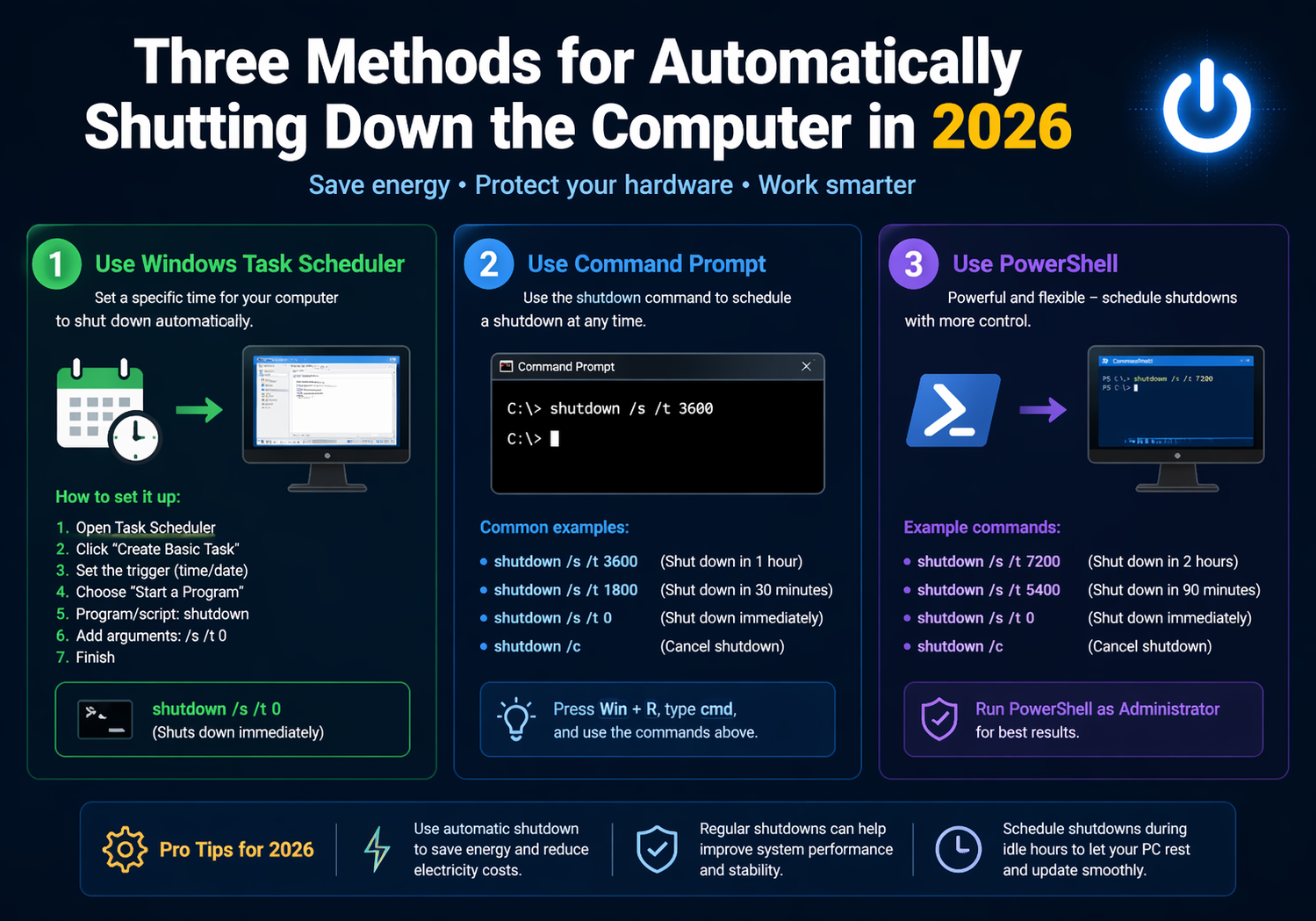
    In 2026, the need to automatically shut down your computer has become more relevant than ever. Whether you want to save energy, schedule system maintenance, or ensure your device is powered off at a specific time for security reasons, there are several ways to automate this task. Thankfully, modern technology offers efficient, user-friendly solutions to set up automatic shutdowns. In this article, we’ll explore three effective methods for automatically shutting down your computer in 2026.

    1. Using the Built-in Task Scheduler in Windows

    Windows operating systems have long offered a built-in Task Scheduler, and it’s still one of the most powerful tools for automating tasks like shutting down your computer. In 2026, Task Scheduler has become even more refined, allowing for more advanced scheduling and trigger options.

    How to Use Task Scheduler to Automatically Shut Down Your Computer:

    1. Open Task Scheduler:
      • Press the Windows key and search for “Task Scheduler.”
      • Click on the Task Scheduler app to open it.
    2. Create a New Task:
      • In the right panel, click Create Basic Task.
      • Enter a name for your task, like “Auto Shutdown,” and click Next.
    3. Choose a Trigger:
      • You can select various triggers such as daily, weekly, or when the computer is idle. For a one-time shutdown, select Once, and set the desired time.
    4. Select Action:
      • Choose Start a Program, and then browse for the program shutdown.exe, which is located in the System32 folder. This is the default executable for shutting down Windows.
      • In the Add Arguments field, type -s -f -t 0. The -s flag initiates shutdown, -f forces close of open applications, and -t 0 ensures it happens immediately.
    5. Finish Setup:
      • After confirming all settings, click Finish. Your computer will now shut down automatically according to the trigger and time you set.

    Task Scheduler allows great flexibility, whether you want your PC to shut down after a certain period of inactivity or on a specific schedule, ensuring you have full control over the shutdown process.

    2. Using a Simple Command with PowerShell (Windows and Mac)

    For those who prefer a quick and straightforward method, PowerShell (for Windows) and the Terminal (for MacOS) are excellent tools for creating a shutdown script. This method allows you to schedule shutdowns without needing complex third-party software.

    How to Set Up Auto-Shutdown Using PowerShell (Windows):

    1. Open PowerShell:
      • Press Windows + X and select Windows PowerShell (Admin).
    2. Enter the Shutdown Command:
      • Type the following command and press Enter:

        shutdown.exe -s -t 3600
      • The -t flag sets the timer in seconds (3600 seconds = 1 hour). Adjust this to your preferred time.
    3. Save the Script (Optional):
      • If you want to save the shutdown command as a script to use regularly, open Notepad, type the shutdown command, and save the file with a .ps1 extension. You can then double-click this file to run it whenever you need to schedule a shutdown.

    How to Set Up Auto-Shutdown Using Terminal (Mac):

    1. Open Terminal:
      • Go to Applications > Utilities > Terminal.
    2. Use the sudo shutdown Command:
      • Enter the following command:

        sudo shutdown -h +60
      • The +60 sets the shutdown to happen in 60 minutes. Replace this with your desired time in minutes.
    3. Schedule the Shutdown:
      • After typing the command, press Enter. You may be asked to enter your system password to authorize the command.

    For both Windows and Mac, this simple approach allows you to shut down your computer automatically without relying on external apps, keeping things efficient and fast.

    3. Third-Party Applications for Custom Shutdown Timing (Windows, Mac, and Linux)

    For users who want more customization, flexibility, and features, third-party applications provide a more user-friendly and feature-packed approach to automatic shutdowns. These apps often come with options to schedule regular shutdowns, restart cycles, sleep modes, or even trigger shutdowns based on system usage.

    Some popular applications include:

    • Wise Auto Shutdown (Windows): A free and easy-to-use app that lets you schedule shutdowns, restarts, logoffs, or hibernations. It also allows you to set timers for specific intervals, making it great for energy-saving routines.
    • Faster Shutdown (Mac): A straightforward application for macOS that lets you schedule shutdowns, restarts, or sleep modes at your convenience. It offers a clean interface and a few added features like a countdown timer.
    • Shutter (Linux): A Linux-based utility that lets you schedule automatic shutdowns, reboots, or logoffs based on time, battery level, or system activity. It’s a versatile tool with numerous features for customizing your computer’s behavior.

    How to Use a Third-Party Application:

    1. Download and Install the App:
      • Visit the app’s website or use your system’s app store to download and install the software.
    2. Set Your Shutdown Preferences:
      • Open the app and select your preferred shutdown time. Most apps allow you to set specific times, intervals, or triggers based on system activity.
    3. Save and Exit:
      • Once you’ve configured the shutdown settings, save them and let the app do the work. The app will automatically shut down your computer based on the schedule you set.

    These third-party solutions offer the added benefit of greater flexibility and ease of use compared to command-line methods, while also offering features that go beyond simple shutdowns, like energy-saving options and detailed logging.

    Conclusion: Which Method is Best for You?

    In 2026, the tools available for automatically shutting down your computer have become more refined and user-friendly than ever before. Whether you prefer built-in tools like Task Scheduler or PowerShell, or you’re looking for third-party applications with advanced features, there’s a solution for everyone.

    • Task Scheduler (Windows) offers flexibility with custom triggers and is ideal for users comfortable with automation.
    • PowerShell/Terminal provides a simple, quick method for those who don’t want additional software but need reliable, timed shutdowns.
    • Third-party apps provide a more intuitive, feature-rich experience, ideal for those who want advanced options and an easy-to-use interface.

    Whichever method you choose, automating your computer’s shutdown can save energy, enhance system performance, and add an extra layer of convenience to your daily routine.

    Share. Facebook Twitter Pinterest LinkedIn Tumblr Email

    Related Posts

    The “Indestructible Match” on TikTok Is the Latest Viral Trend

    How LegalTech Tools Simplify Drafting and Reviewing Lease Agreements

    Navigating the Field: A Comprehensive Guide to Choosing the Best Farm Trailer

    Leave A Reply Cancel Reply

    You must be logged in to post a comment.

    voopoo drag 6
    oxva xlim 3 ultra
    sp2s sen x disposable vape
    • Popular
    • 3D Printer REVIEW
    • XIAOMI
    April 18, 2026

    VOOPOO DRAG 6 Hands on Review: Vape Beast with Smart Power & Premium Control

    April 8, 2026

    OXVA NeXLIM vs XLIM Pro 2 Pod Hands-On Review (2026)

    March 16, 2026

    OXVA Slimstick VS OXVA Slimstick X Vape Hands-on Review

    March 5, 2026

    OXVA XLIM PRO 3 vs XLIM GO 2: Hands-On Review

    December 26, 2025

    ACMER ASCARVA 4S: Precision CNC Power for Makers, DIYers & Small Workshops

    June 23, 2024

    ACMER P2 20W Laser Engraver Fixed Focus Engraving: Hands on Review

    May 30, 2024

    xTool F1 Ultra Review: World’s First 20W Fiber & 20W Diode Laser Engraver

    May 30, 2024

    Anycubic Kobra 3 Combo Review: The Multicolor Masterpiece?

    April 23, 2026

    The largest battery-powered Xiaomi flagship of all time is here! Xiaomi 17 Max will be unveiled in May: A versatile large-screen flagship.

    April 22, 2026

    Starting from 3399 yuan! Redmi K Pad 2 Released: 8.8-inch + Dimensity 950

    April 22, 2026

    Redmi Buds 8 Released: 50dB deep noise reduction, supports location tracking and loss prevention

    April 22, 2026

    Xiaomi S Mini LED 2026 Series Released: 2000nits Anti-Reflection Screen + 288Hz Ultra-High Refresh Rate

    fc 26 coins
    New Arrivals
    • SMOK Vaporock X1 Pod System Kit SMOK Vaporock X1 Pod System Kit
    • WASPE 4-in-1 100K Disposable Vape WASPE 4-in-1 100K Disposable Vape
    • SMOK Alpha Mix Pod System Kit SMOK Alpha Mix Pod System Kit
    • VOOPOO Argus G4 Mini Pod System Kit VOOPOO Argus G4 Mini Pod System Kit
    • IPLAY NEXUS 45k Disposable Pod IPLAY NEXUS 45k Disposable Pod
    • IPLAY NOVA 45k Disposable Pod IPLAY NOVA 45k Disposable Pod
    • Lost Vape Kata Pod System Kit Lost Vape Kata Pod System Kit
    • Pica Bar Pure 45K Disposable Vape Pica Bar Pure 45K Disposable Vape
    • Foger Switch Pro 30k Nixodine Disposable Vape Foger Switch Pro 30k Nixodine Disposable Vape
    About
  • Igeekphone.com provides the first global tech news and reviews about smartphone, vapes, e-cigar, smart home, 3D printers, e-bike,tablets, RC drones, VR headset, and other accessories. It's the best platform to improve your brand and product.
  • Contact us: info@igeekphone.com
  • Check Our Privacy Policy Here.
  • Note: *Right now we have US editor and EU editors for review, especially for Amazon US and EU.
  • *Shop and Compare Price Here*
  • Facebook
  • Youtube
  • OUR BEST VAPE PARTNERS
  • VAPE ONLINE STORE
  • HAYATI PRO MAX PLUS
  • VAPORESSO
  • VOOPOO
  • OXVA
  • NEXA
  • MASKKING
  • TODOO
  • SP2S
  • VEIIK
  • OTHER BEST PARTNERS
  • SVBONY
  • Chuwi
  • Blackview
  • Fossibot
  • Unihertz
  • Flsun
  • Anycubic
  • Xtool
  • Oukitel
  • Mukkpet Ebike
  • Ugreen
  • Copyright © 2026 igeekphone

    Type above and press Enter to search. Press Esc to cancel.