







Facebook Twitter Instagram
    Trending
    • JNR Meteorite 100K VS Maskking Camo 100K: Comparison Review
    • JNR Lila Kiss⁺ vs. IPLAY NOVA: High-Capacity Showdown
    • Spark Your Life: Join the VOOPOO Pitch Challenge and Win Big!
    • Upgrade Your Audio Setup with HiFiGo’s Summer Flash Sale
    • JNR Meteorite 100K Refillable Vape Kit Review: A Revolutionary Powerbank-Style Vaping System
    • Yocan Black Pocket Concentrate Vaporizer Review: Precision Dabbing in a Pocket-Sized Device
    • YiHi SXmini MQ Class Box Mod 60W Review: Features, Design & Technology
    • MJX H18P RTR 1/18 RC Car Review – Compact Brushless Crawler with Big Capability
    Facebook YouTube
    IGeeKphone China Phone, Tablet PC, VR, RC Drone News, Reviews
    • HOME
      • NEWS
        • DeepSeek
        • ChatGPT
        • Minecraft
    • Amazon
    • PHONE
      • Top Phones For Your First Choice
      • Phone Comparison
      • Xiaomi
      • Blackview
      • Doogee
      • Black Shark
      • Geekbuying
      • Banggood
      • TEMU
      • TikTok
      • Aliexpress
      • Walmart
      • MercadoLibre
      • Lazada
    • TOP VAPE Awards for 2026
    • VAPES
      • E-CIGAR Upcoming
      • Vape News
      • Vape Deals
      • Vape Comparison
      • Vape Guide
      • Giveaway
    • BEST VAPE
      • Best Vape Stores
      • Best Starter Vape Kits
      • Best Vapes for Beginners
      • Best Disposable Vapes
      • Best Pod Systems
      • Best Pod Mod Vapes
      • Best Mods
      • Best Nicotine Pouches
      • Best Clearomizers/Tanks
      • Best E-Liquid
      • Best EGO/Pens
      • Best Vapes for Nic Salt E-Juice
      • Best Vapes to Quit Smoking
      • RDA vs. RDTA vs. RTA
    • Best Vape Brand 2026
      • VAPORESSO
      • VOOPOO
      • OXVA
      • NEXA BAR
      • MASKKING VAPE
      • SP2S
      • IPLAY
      • TODOO
      • MRFOG
      • LOSTVAPE
      • VEIIK
    • REVIEW
      • E-cigar Review
      • Phones
      • Tablet PC
      • TV Box
      • RC Drone
      • Wearables
      • Camera
      • Accessories
      • VR Headset
    • MORE
      • TABLET
        • Chuwi
        • INNOCN
        • Teclast
        • Top Tablet for Your First Choice
        • Tablet/Laptop Comparison
      • RC DRONE
      • CAMERA
      • WEARABLES
        • OneOdio
        • BlitzWolf
        • Top Smartwatch for First Choice
      • 3D PRINTER
        • 3D Printer Review
        • Anycubic
        • FLSUN
        • Xtool
        • LONGER
        • Top 3D printer to Choose First
      • POWER STATION
        • Oukitel
        • FOSSIBOT
      • GAMING
        • Top Gaming Products
      • E-BIKE
        • Samebike
        • Happyrun
        • ENGWE
      • SMART HOME
      • TV BOX
      • ACCESSORIES
      • VR HEADSET
      • CLOTHES
      • AUTO CAR
    • DEAL
    • VAPE LAWS
    • Shop
    IGeeKphone China Phone, Tablet PC, VR, RC Drone News, Reviews
    You are at:Home»Guide»How to Fix the Issue of Your Laptop Becoming Very Slow After Being Idle for a Long Time
    Guide

    How to Fix the Issue of Your Laptop Becoming Very Slow After Being Idle for a Long Time

    Brady CottonBy Brady CottonApril 27, 2026
    Facebook Twitter Pinterest LinkedIn Tumblr Email

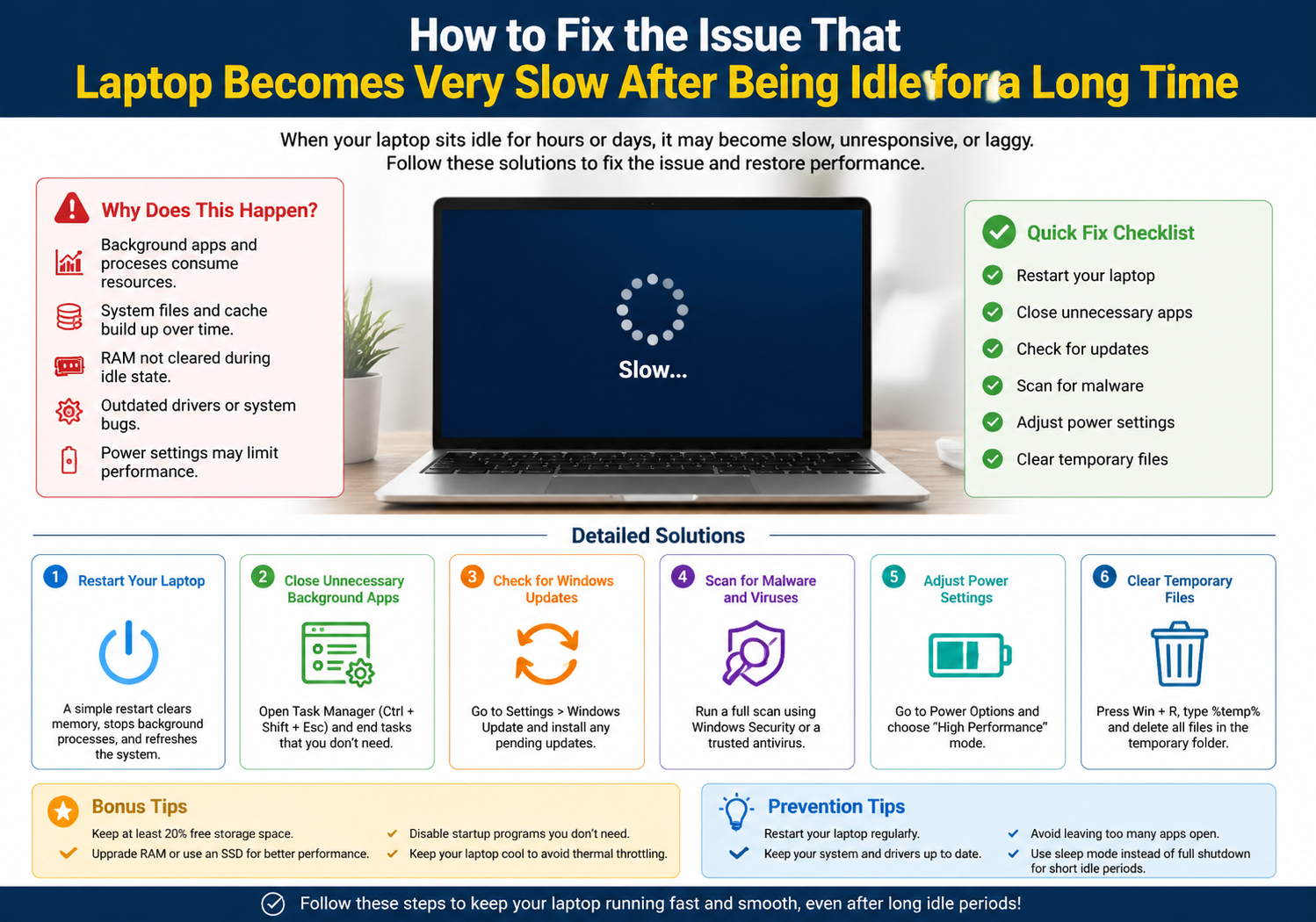
    Laptops are designed to be versatile and efficient machines, but like all technology, they can sometimes encounter performance issues. One frustrating problem that many users face is the sudden slowdown of their laptops after they’ve been idle for an extended period of time. If you’ve ever come back to your laptop after leaving it idle for a few hours or overnight, only to find it sluggish and unresponsive, you’re not alone. Fortunately, this issue can often be resolved with a few simple troubleshooting steps.

    In this article, we’ll explore the common causes of this issue and offer practical solutions to get your laptop running smoothly again.

    Why Does a Laptop Slow Down After Being Idle?

    There are several reasons why your laptop may slow down after being idle for a long time. Understanding the underlying causes can help you pinpoint the right solution. Some common reasons include:

    1. Power Management Settings
      • Many laptops use power-saving modes to preserve battery life when left idle. While this can help save energy, it can sometimes cause the laptop to lag when you resume activity, as processes may not be properly optimized.
    2. Background Processes and Updates
      • When a laptop is idle, many background tasks (like system updates, antivirus scans, or application processes) may run. These processes can consume CPU and memory resources, leaving your laptop feeling sluggish when you return.
    3. Overheating
      • If your laptop has been left on for an extended period, it may overheat. Overheating can cause the CPU to throttle its performance, making the laptop slower when you try to use it after being idle.
    4. RAM and Virtual Memory Issues
      • If your laptop doesn’t have enough physical RAM, it may rely on virtual memory (hard drive space) to make up for it. When the laptop goes idle for a while, too much data may be stored in the virtual memory, causing it to slow down when you resume.
    5. Software Bugs or Glitches
      • Sometimes, software bugs or memory leaks can cause your laptop to slow down after being idle. This is often the case with poorly optimized software or old applications that haven’t been updated in a while.

    Steps to Fix a Slow Laptop After Being Idle

    Here are the most effective solutions to fix the issue of a slow laptop after being idle for a long time:

    1. Adjust Power Settings

    Power management settings can sometimes cause your laptop to become sluggish after being idle. You can optimize these settings to ensure that your laptop remains responsive.

    How to adjust power settings:

    • For Windows:
      1. Go to Settings > System > Power & sleep.
      2. Under Sleep, select Never for both the battery and plugged-in options.
      3. Click on Additional power settings.
      4. Choose High performance or Balanced, and then click on Change plan settings. Ensure that your laptop isn’t entering sleep or hibernation too quickly.
    • For macOS:
      1. Go to Apple Menu > System Preferences > Energy Saver.
      2. Set the sleep settings to a longer duration, or choose the option to prevent the system from going to sleep while plugged in.
    2. Disable Unnecessary Background Processes

    Background applications and tasks can use up valuable system resources, slowing your laptop down after it’s been idle. These tasks might include automatic updates, file indexing, or background apps.

    How to disable unnecessary background processes:

    • For Windows:
      1. Press Ctrl + Shift + Esc to open the Task Manager.
      2. Under the Processes tab, look for applications using high CPU or memory resources and end the tasks that are unnecessary.
      3. You can also go to the Startup tab and disable unnecessary startup programs that might be slowing down your system.
    • For macOS:
      1. Go to Applications > Utilities > Activity Monitor.
      2. Identify any applications consuming too many resources and quit them.
      3. You can also go to System Preferences > Users & Groups > Login Items and remove any unnecessary startup programs.

    3. Check for Software Updates

    Outdated software, whether it’s the operating system or individual applications, can cause performance issues. Make sure your system and software are up-to-date.

    How to check for updates:

    • For Windows:
      1. Go to Settings > Update & Security.
      2. Click on Check for updates and install any available updates.
    • For macOS:
      1. Go to the Apple Menu > System Preferences > Software Update.
      2. Click on Update Now to install any available updates.

    4. Clean Up Hard Drive and Optimize Storage

    A cluttered hard drive can lead to slower system performance, especially when your laptop has been idle and is trying to retrieve data. Cleaning up unnecessary files and optimizing your hard drive can help.

    How to clean up and optimize storage:

    • For Windows:
      1. Use the built-in Disk Cleanup tool to remove temporary files, system files, and other unnecessary data.
      2. Go to Settings > System > Storage, and click on Configure Storage Sense to automatically clean up files you no longer need.
    • For macOS:
      1. Go to Apple Menu > About This Mac > Storage to see how much space is available.
      2. Use Finder to manually remove old files or large apps that you no longer need.

    5. Reboot Your Laptop Regularly

    Sometimes, simply restarting your laptop can resolve sluggishness. Rebooting helps clear out any system processes that might have been left open after being idle and can refresh the system.

    6. Address Overheating Issues

    Overheating can cause the CPU to throttle performance. Make sure your laptop is well-ventilated and isn’t being blocked by soft surfaces like a bed or couch, which can obstruct airflow.

    How to prevent overheating:

    • Use a cooling pad to help dissipate heat.
    • Clean your laptop’s vents and fans to remove dust and dirt that might be causing overheating.
    • Ensure your laptop is placed on a hard, flat surface to allow air to flow properly.

    7. Check for Malware or Viruses

    Malware or viruses can cause your laptop to slow down, even after being idle. Running a system scan with a trusted antivirus program can help identify and remove any malicious software.

    Conclusion

    A laptop slowing down after being idle can be caused by a variety of factors, but most of the time, it’s an issue that can be resolved with a few straightforward steps. By adjusting power settings, disabling unnecessary background processes, keeping your software updated, cleaning up your hard drive, and managing overheating, you can get your laptop running smoothly again.

    Regular maintenance, such as clearing out old files, updating software, and keeping an eye on system performance, will help prevent these slowdowns from happening in the future, ensuring that your laptop continues to perform at its best.

    Share. Facebook Twitter Pinterest LinkedIn Tumblr Email

    Related Posts

    Beyond The Ordinary Grill: The Magic of Kamado Cookers

    Smart Homes, Safe Seniors: Leveraging Electronics to Combat Nursing Home Abuse

    Space Survival and Strategy: ‘Where Wolf’ Unleashes NFT and GameFi Elements

    Leave A Reply Cancel Reply

    You must be logged in to post a comment.

    voopoopintch
    oxva xlim go lite
    sp2s sen x disposable vape
    • Popular
    • 3D Printer REVIEW
    • XIAOMI
    June 17, 2026

    Nexa Ultra II vs Nexa Ultra 50K Disposable Vape Hands on Review

    June 17, 2026

    OXVA XLIM GO LITE VS OXVA XLIM GO 2 Vape Hands on Review

    June 13, 2026

    Vaporesso LUXE X3 & LUXE Q3 Review. Two Paths to Exceptional Flavor

    June 6, 2026

    VOOPOO ARGUS G4 & ARGUS G4 Mini Review – Smart Flavor Meets Everyday Simplicity

    December 26, 2025

    ACMER ASCARVA 4S: Precision CNC Power for Makers, DIYers & Small Workshops

    June 23, 2024

    ACMER P2 20W Laser Engraver Fixed Focus Engraving: Hands on Review

    May 30, 2024

    xTool F1 Ultra Review: World’s First 20W Fiber & 20W Diode Laser Engraver

    May 30, 2024

    Anycubic Kobra 3 Combo Review: The Multicolor Masterpiece?

    June 18, 2026

    Xiaomi’s first large-screen foldable flagship device, MIX Fold 5, has been Approved for Network Use

    June 17, 2026

    Xiaomi’s first large-screen foldable flagship device, MIX Fold 5, has been approved for network use: The first version features the self-developed chip by Xianji O3.

    June 12, 2026

    When will Redmi K40 be Released?

    June 10, 2026

    Xiaomi Hyper OS 3 Second Batch Beta Version Begins Recruitment: Covering Five Models Including Redmi K80 and Xiaomi MIX Flip2

    fc 26 coins
    New Arrivals
    • Olit Hookalit Nex 120K Disposable Vape Kit Olit Hookalit Nex 120K Disposable Vape Kit
    • Xiaomi 19 Xiaomi 19
    • Xiaomi 19 Pro Xiaomi 19 Pro
    • JNR Zpluse 42K+ Puffs Top-Fill Replaceable and Refillable Vape Kit JNR Zpluse 42K+ Puffs Top-Fill Replaceable and Refillable Vape Kit
    • Lost Vape Ursa Nano S 3 Pod System Kit Lost Vape Ursa Nano S 3 Pod System Kit
    • Honor Power 3 Honor Power 3
    • Redmi Note 17 Pro Plus Global Redmi Note 17 Pro Plus Global
    • Yocan Black Pocket Concentrate Vaporizer Yocan Black Pocket Concentrate Vaporizer
    • Loon Air Plus 6000 Disposable Loon Air Plus 6000 Disposable
    About
  • Igeekphone.com provides the first global tech news and reviews about smartphone, vapes, e-cigar, smart home, 3D printers, e-bike,tablets, RC drones, VR headset, and other accessories. It's the best platform to improve your brand and product.
  • Contact us: info@igeekphone.com
  • Check Our Privacy Policy Here.
  • Note: *Right now we have US editor and EU editors for review, especially for Amazon US and EU.
  • *Shop and Compare Price Here*
  • Facebook
  • Youtube
  • Mashable is a global, multi-platform media and entertainment company

    For more queries and news contact us on this

    Email: info@mashablepartners.com

  • OUR BEST VAPE PARTNERS
  • VAPE ONLINE STORE
  • HAYATI PRO MAX PLUS
  • VAPORESSO
  • VOOPOO
  • OXVA
  • NEXA
  • MASKKING
  • SP2S
  • IPLAY
  • TODOO
  • OTHER BEST PARTNERS
  • SVBONY
  • Chuwi
  • Blackview
  • Fossibot
  • Unihertz
  • Flsun
  • Anycubic
  • Xtool
  • Oukitel
  • Mukkpet Ebike
  • Ugreen
  • Copyright © 2026 igeekphone

    Type above and press Enter to search. Press Esc to cancel.