










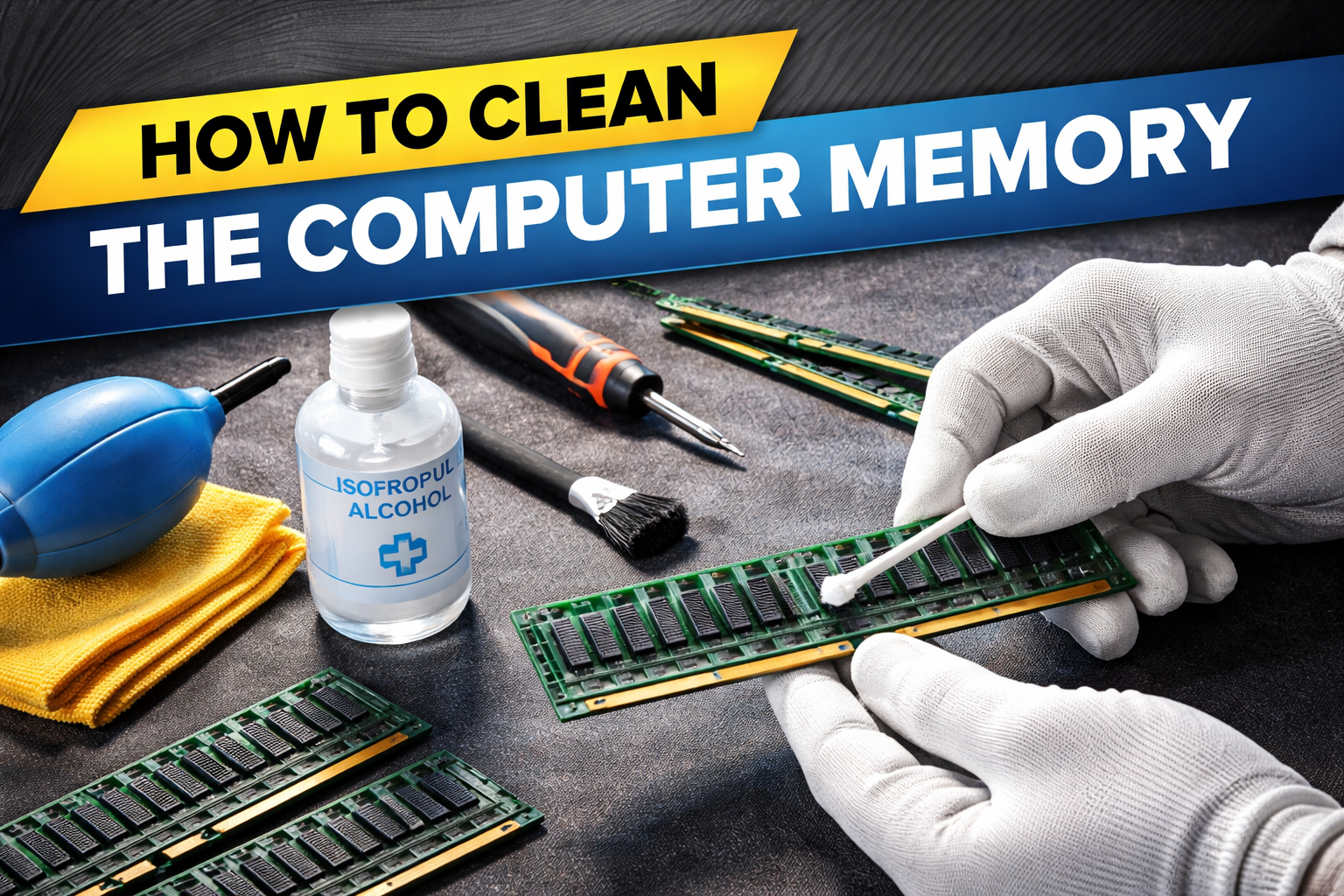
A cluttered or overloaded computer memory (RAM) can severely impact your system’s performance, causing slowdowns, crashes, and frustrating lag. Just like physical space, your computer’s memory needs to be cleared and organized from time to time to keep things running smoothly. In this article, we’ll walk you through how to clean and optimize your computer’s memory, so you can enjoy a faster, more efficient system.
What is Computer Memory (RAM)?
Random Access Memory (RAM) is a critical component of your computer that temporarily stores data for quick access by the CPU. When you open a program or file, the operating system loads it into the RAM so that it can be accessed quickly. However, when the RAM becomes full or inefficient, it can slow down the system and cause performance issues.
Cleaning the memory doesn’t mean physically scrubbing the RAM sticks; it refers to optimizing or clearing up the virtual memory being used by your computer. There are several ways to do this, from clearing up running processes to updating your hardware.
Steps to Clean Your Computer Memory
1. Close Unnecessary Programs and Processes
One of the quickest ways to clean up your RAM is by closing any unnecessary applications running in the background. Many programs start up automatically when you boot up your computer and may continue running without you realizing it. These programs consume memory and can slow down your computer.
For Windows:
- Press Ctrl + Shift + Esc to open the Task Manager.
- In the Processes tab, you’ll see a list of running programs and their memory usage.
- Right-click on any program you don’t need, and select End Task to close it.
- For programs running in the background, go to the Startup tab in Task Manager and disable any unnecessary ones from automatically launching when you start your computer.
For Mac:
- Open Activity Monitor (Applications > Utilities > Activity Monitor).
- In the Memory tab, find and select the processes using up a lot of RAM.
- Select the process and click the X button at the top left to quit it.
2. Restart Your Computer
Restarting your computer is a simple yet effective way to clear out memory. This action will close all open programs and processes, releasing the memory that was being used. It’s especially helpful if you’ve had your computer running for a long time, as it can help reset the system and optimize its performance.
3. Clear Browser Cache
Browsers like Google Chrome, Mozilla Firefox, or Microsoft Edge store cached files to speed up browsing. However, over time, these files accumulate and consume RAM, which can slow down your system.
To clear the cache:
- Google Chrome: Go to the three-dot menu > More Tools > Clear Browsing Data. Check Cached images and files and click Clear data.
- Firefox: Open the hamburger menu > Preferences > Privacy & Security > Clear History. Select Cache and click OK.
- Edge: Click the three dots > Settings > Privacy, search, and services > Choose what to clear > Check Cached images and files > Clear now.
4. Use Disk Cleanup (Windows)
Windows includes a built-in tool called Disk Cleanup that helps free up space and optimize your computer’s performance by removing unnecessary system files, old updates, temporary files, and more.
To run Disk Cleanup:
- Press Win + S and type “Disk Cleanup” in the search bar.
- Select Disk Cleanup and choose the drive you want to clean (usually C:).
- Click OK, and then choose the types of files you want to delete (e.g., Temporary files, System files, Recycle Bin).
- Click Clean up system files for a deeper clean.
5. Clear Virtual Memory (Pagefile)
In addition to RAM, your system also uses virtual memory (pagefile) to offload memory when it’s running low. Sometimes, the pagefile can accumulate unnecessary data, so clearing it can help free up space.
For Windows:
- Open Control Panel > System > Advanced System Settings.
- Under the Performance section, click Settings.
- In the Performance Options window, go to the Advanced tab and click Virtual Memory.
- Uncheck Automatically manage paging file size for all drives, then select No paging file.
- Click Set, then OK and restart your computer.
For Mac:
Mac handles virtual memory automatically, so it typically doesn’t require manual clearing. However, restarting your Mac can clear temporary caches and virtual memory.
6. Disable Startup Programs
Many programs automatically launch when you start your computer, and they continue running in the background, consuming precious RAM. Disabling these startup programs can free up memory and improve boot time.
For Windows:
- Press Ctrl + Shift + Esc to open Task Manager.
- Go to the Startup tab and disable any unnecessary programs from starting up.
For Mac:
- Open System Preferences > Users & Groups > Login Items.
- Uncheck any items you don’t need starting automatically.
7. Update or Upgrade Your RAM
If you’ve tried the above steps and your computer is still running slow, you might need more physical RAM. Over time, the software you use can become more memory-intensive, requiring more RAM for smooth operation.
- If you’re on a desktop, upgrading RAM is usually a relatively simple process—just purchase the correct memory modules and install them.
- Laptops may be trickier, as some have soldered RAM, meaning they can’t be upgraded easily. For laptops with upgradeable RAM, consult your manual to find the right type and amount of RAM your system supports.
8. Use Memory Optimizer Tools
If you prefer a quicker and automated solution, you can use memory optimization tools that automatically manage and clear your system’s memory for you. CCleaner, RAMMap, and CleanMem are popular choices. These tools scan for memory leaks, clear temporary files, and optimize memory usage with minimal user input.
9. Defragment Your Hard Drive (HDD)
For systems running on HDDs (Hard Disk Drives), fragmentation can cause slower performance as the system struggles to access scattered data. Defragmenting the drive can improve performance by rearranging the data more efficiently.
To defragment your drive (Windows):
- Open the Start Menu and search for Defragment and Optimize Drives.
- Select your hard drive and click Optimize.
Note: This step is not necessary for SSDs (Solid State Drives), as they don’t suffer from fragmentation in the same way.
Conclusion
Regularly cleaning your computer memory is essential for maintaining optimal performance. By following the above steps, such as closing unnecessary processes, clearing browser caches, using disk cleanup, and updating your RAM, you can ensure your computer runs smoothly and efficiently. These actions will help free up memory, improve system speed, and reduce crashes or freezes, giving you a better overall computing experience. Whether you’re using your computer for work, entertainment, or gaming, a clean and optimized memory is key to getting the most out of your system.