









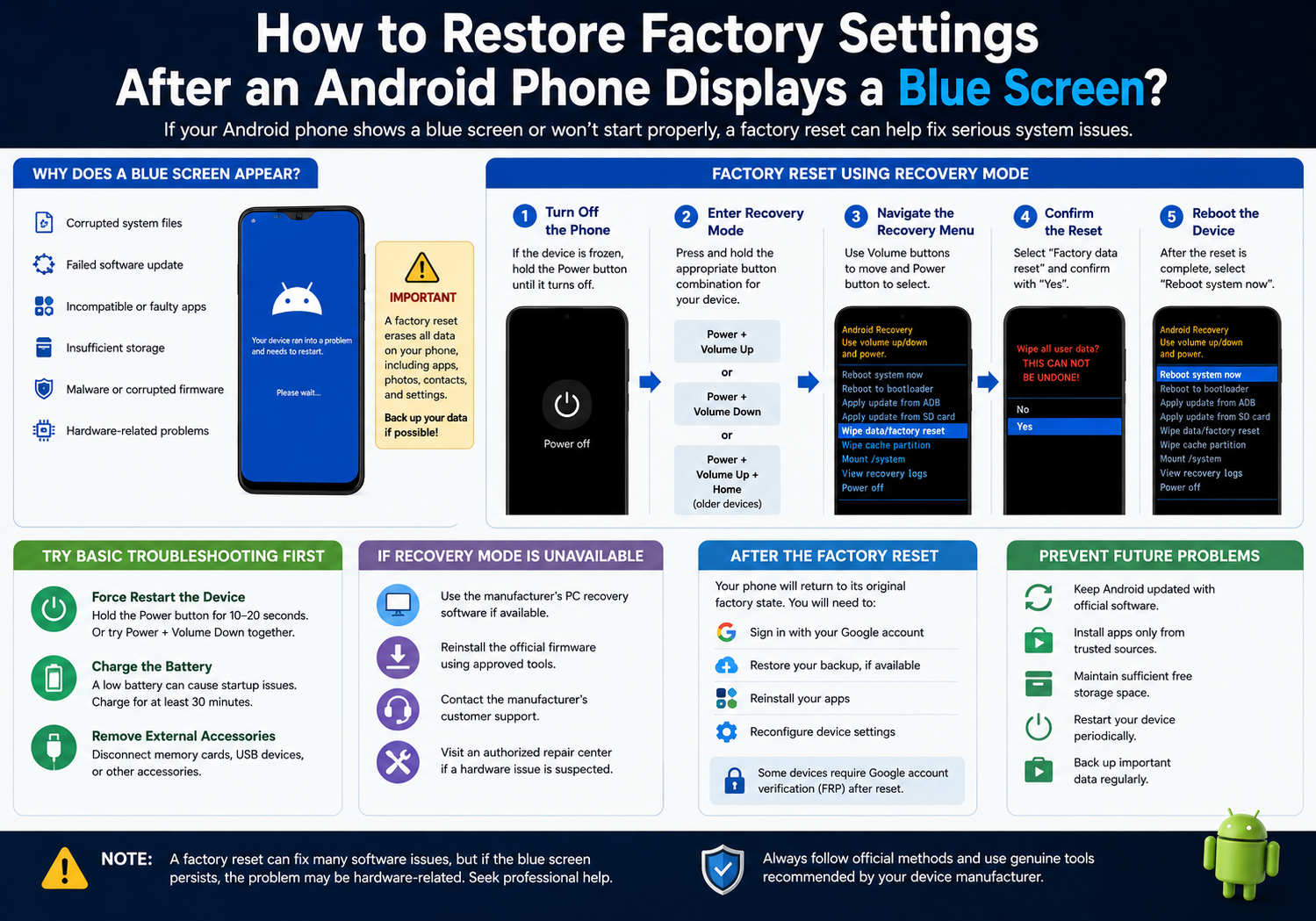
A blue screen on an Android phone can be alarming, especially if the device becomes unresponsive or repeatedly crashes. While Android devices do not typically display the same “Blue Screen of Death” associated with Windows computers, some manufacturers may show a blue screen or a blue-tinted error display when a serious system issue occurs. If basic troubleshooting does not resolve the problem, performing a factory reset may help restore the device to working condition.
Before proceeding, it’s important to understand that a factory reset erases all personal data stored on the device, including apps, photos, contacts, and settings. If possible, back up your data before resetting the phone.
Common Causes of a Blue Screen
A blue screen or similar system error may result from several issues, including:
- Corrupted system files
- A failed software update
- Incompatible or malfunctioning apps
- Insufficient system storage
- Hardware-related problems
- Malware or corrupted firmware
Identifying the underlying cause can help determine whether a factory reset is the appropriate solution.
Try Basic Troubleshooting First
Before performing a factory reset, try these simpler solutions:
Force Restart the Device
Press and hold the Power button for about 10–20 seconds. On some devices, you may need to hold the Power and Volume Down buttons simultaneously until the phone restarts.
Charge the Battery
A critically low battery can sometimes cause startup problems. Connect the phone to its original charger and allow it to charge for at least 30 minutes before attempting to turn it on again.
Remove External Accessories
Disconnect memory cards, USB accessories, or other connected devices that could interfere with the startup process.
How to Factory Reset Using Recovery Mode
If the phone cannot boot normally, you can usually perform a factory reset through Android Recovery Mode.
Step 1: Turn Off the Phone
If the device is frozen, force it to power off by holding the Power button until the screen turns off.
Step 2: Enter Recovery Mode
The button combination varies by manufacturer, but common methods include:
- Power + Volume Up
- Power + Volume Down
- Power + Volume Up + Home (older devices)
Hold the required buttons until the manufacturer’s logo appears, then release them when the Recovery Mode menu opens.
Step 3: Navigate the Recovery Menu
Use the Volume Up and Volume Down buttons to move through the menu, and use the Power button to confirm selections.
Select:
Wipe data/factory reset
Step 4: Confirm the Reset
Choose Factory data reset or Yes when prompted.
The phone will begin erasing all user data and restoring the factory software configuration.
Step 5: Reboot the Device
After the reset is complete, select:
Reboot system now
The first startup may take several minutes while Android rebuilds system files.
If Recovery Mode Is Unavailable
If you cannot access Recovery Mode, you may still have other options:
- Use the manufacturer’s PC recovery software if available.
- Reinstall the official firmware using approved tools.
- Contact the device manufacturer’s customer support.
- Visit an authorized repair center if a hardware issue is suspected.
What Happens After a Factory Reset?
Once the reset is complete, the phone returns to its original factory state. You will need to:
- Sign in with your Google account.
- Restore your backup, if available.
- Reinstall apps.
- Reconfigure device settings.
Some devices also require Factory Reset Protection (FRP) verification, meaning you’ll need to sign in with the Google account previously associated with the phone.
Preventing Future System Problems
To reduce the likelihood of future startup issues:
- Keep Android updated with official software releases.
- Install apps only from trusted sources.
- Maintain sufficient free storage space.
- Restart your device periodically.
- Back up important data regularly.
Conclusion
A factory reset can often resolve serious software issues that prevent an Android phone from starting properly, including certain blue-screen-related problems caused by corrupted system files or failed updates. However, because the process erases all personal data, it should generally be considered after simpler troubleshooting methods have been attempted. If the problem persists even after a factory reset, the device may require firmware reinstallation or professional hardware diagnosis.