










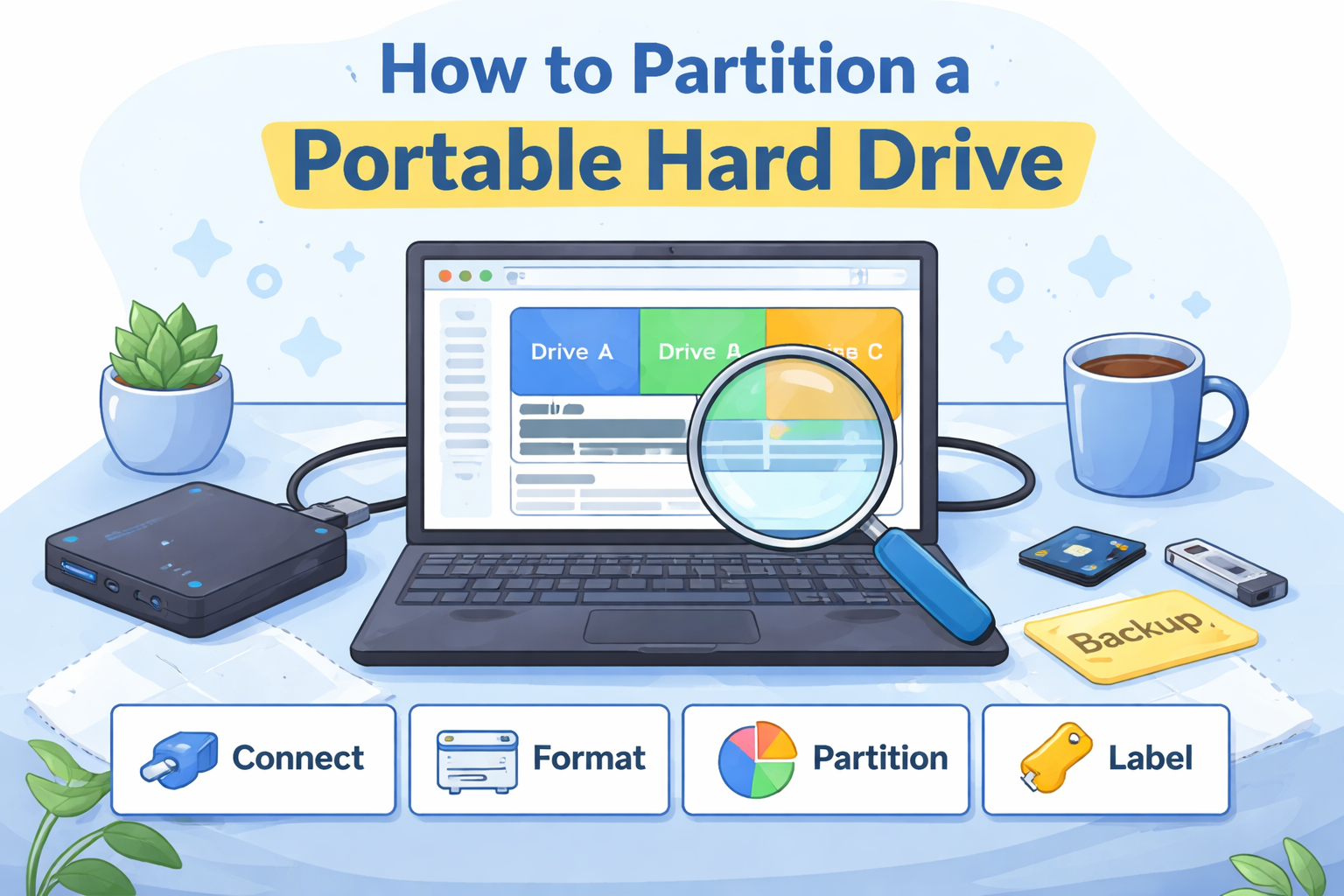
Partitioning a portable hard drive is a useful way to organize your files, create multiple storage spaces, or prepare it for use across different operating systems. Whether you want to keep your media files separate from backups, or create a partition specifically for a particular file system (e.g., for Mac and Windows compatibility), partitioning allows you to effectively manage your storage. In this guide, we will walk you through how to partition a portable hard drive on both Windows and Mac systems.
Why Partition a Portable Hard Drive?
Partitioning creates separate sections within your hard drive, each with its own file system and storage space. There are several reasons why you might want to partition your portable hard drive:
- Organize Files: Keep different types of data (e.g., documents, media, backups) on separate partitions for easier access.
- Compatibility: You might need to create partitions with different file systems to make the drive compatible with different operating systems (e.g., FAT32 for Windows, HFS+ for Mac).
- Security and Backup: Partitioning can isolate important data, minimizing the risk of corruption or accidental deletion. Additionally, a backup partition can be used to store duplicate files.
- Performance: Having multiple partitions can help improve data access speed and reduce fragmentation, depending on how the drive is used.
How to Partition a Portable Hard Drive on Windows
Step 1: Connect Your Portable Hard Drive
Plug your portable hard drive into your computer using a USB cable. Ensure that the device is recognized by Windows. Open File Explorer to confirm that the drive appears under This PC.
Step 2: Open Disk Management
- Press Windows + X and select Disk Management from the menu.
- In Disk Management, you’ll see a list of all drives connected to your system, including your portable hard drive.
Step 3: Select the Portable Hard Drive
Locate your portable hard drive in the lower section of the Disk Management window. It may appear as Disk 1, Disk 2, etc., depending on how many drives are connected to your computer. Make sure you select the correct drive by checking its size and label.
Step 4: Delete Existing Partitions (If Necessary)
If your portable hard drive is already partitioned and you want to repartition it:
- Right-click on the existing partition(s) of the hard drive and select Delete Volume.
- Deleting the partition will erase all data on the drive, so ensure you’ve backed up your files before proceeding.
Step 5: Create New Partitions
- Right-click on the unallocated space of your portable hard drive and select New Simple Volume.
- The New Simple Volume Wizard will pop up. Follow the on-screen instructions:
- Specify the Volume Size: Enter the desired size for the new partition in megabytes (MB). You can also leave it at the default size to use the entire available space.
- Assign a Drive Letter: Choose a letter to assign to the partition (e.g., D:, E:, etc.).
- Format the Partition: Choose a file system for the partition. For most general purposes, NTFS is recommended for Windows. If you need compatibility with both Mac and Windows, you can use FAT32 (though note that FAT32 has file size limitations).
- Complete the Wizard: Review your choices and click Finish to create the partition.
Step 6: Repeat for Additional Partitions
If you want to create additional partitions on your hard drive, repeat steps 5-6 for each partition you want to create. Each partition will appear as a separate drive letter in File Explorer.
Step 7: Format the Drive (If Necessary)
If your new partition isn’t formatted yet or if you want to reformat an existing one:
- Right-click on the new partition in Disk Management and select Format.
- Choose the file system, volume label, and other settings, then click OK to format the partition.
How to Partition a Portable Hard Drive on Mac
Step 1: Connect Your Portable Hard Drive
Plug your portable hard drive into your Mac using the USB cable. Once connected, it should appear on the Desktop or in the Finder.
Step 2: Open Disk Utility
- Open Disk Utility by going to Applications > Utilities > Disk Utility or by searching for it using Spotlight (Command + Spacebar).
- In Disk Utility, you’ll see a list of all connected drives on the left sidebar. Select your portable hard drive.
Step 3: Erase the Drive (If Necessary)
If you want to repartition your portable hard drive and it already has data, erase it first:
- Select the drive and click on the Erase tab.
- Choose a format (for compatibility, choose ExFAT if you need to use it on both Mac and Windows).
- Click Erase to begin the process. This will remove all data from the drive, so make sure to back up your files first.
Step 4: Partition the Drive
- After erasing, select the Partition button from the top of the window.
- A pie chart will appear showing the current partition structure. Click the + button to add a new partition.
- Drag the slider or enter the size of the partition you want to create.
- Choose a name, file format, and scheme for the partition. For cross-platform compatibility, you might want to select ExFAT or MS-DOS (FAT).
- Once done, click Apply to partition the drive.
Step 5: Create Additional Partitions
To create more partitions, simply click the + button again, and adjust the partition sizes as needed. Each partition will be listed in the pie chart.
Step 6: Format the Partitions
You can format each partition as needed. Choose the file system format that best suits your needs. APFS is great for Mac, while ExFAT is perfect for drives used on both Mac and Windows.
Step 7: Confirm the Changes
After partitioning, click Apply to confirm the changes. Disk Utility will now partition your drive according to your specifications.
Conclusion
Partitioning a portable hard drive is a straightforward way to better organize your storage and ensure compatibility across different devices. Whether you’re using Windows or Mac, the process involves selecting your drive, creating new partitions, and formatting them with the appropriate file system.
Always remember to back up your data before partitioning or erasing your drive, as these processes can lead to data loss. With multiple partitions, you can create a more efficient and organized storage system, whether for personal use, backups, or managing multiple file types across different operating systems.