










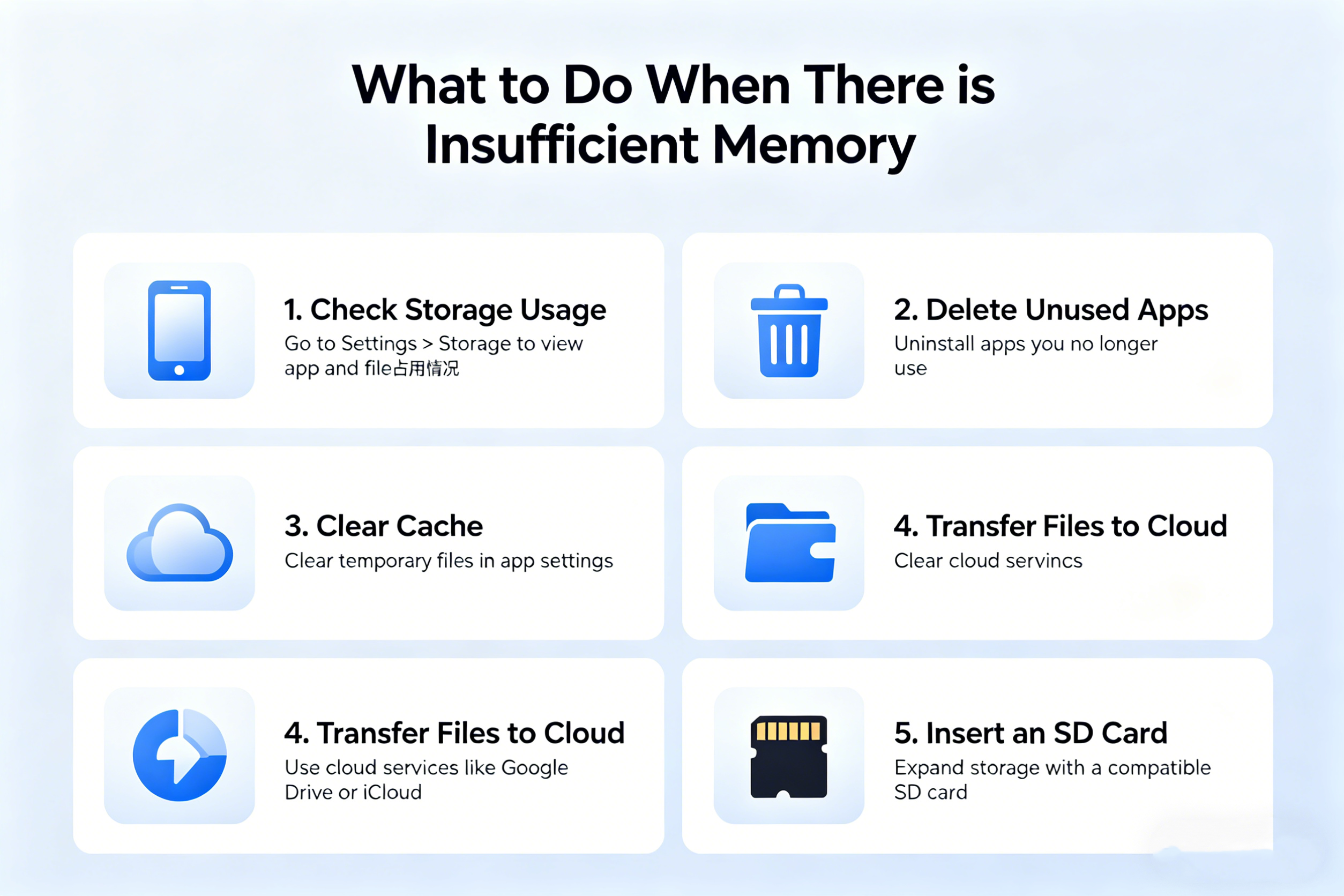
Running into insufficient memory or storage issues can be one of the most frustrating experiences, whether you’re using a computer, smartphone, or tablet. When you start getting error messages or notice slow performance, it’s often a sign that your device is running low on available memory or storage space. But don’t worry! There are several ways to free up space, optimize your device, and get things running smoothly again. Here’s a guide to help you tackle insufficient memory problems.
1. Check Storage Usage and Identify Space Hogs
Before you dive into fixing the issue, it’s important to know exactly where your memory or storage is being used. Most devices offer built-in tools to help you identify the apps, files, and processes that are consuming the most space.
- On Windows: Go to Settings > System > Storage. You can see how much space is taken by apps, temporary files, system files, and other data. Windows also gives you an option to clean up unused files.
- On macOS: Click on the Apple logo > About This Mac > Storage. It provides a breakdown of storage usage, including apps, documents, and system files.
- On Android: Head to Settings > Storage, where you can see how much space is used by apps, photos, and system data.
- On iPhone/iPad: Go to Settings > General > iPhone Storage (or iPad Storage). It shows a list of apps with their space usage and recommendations for managing space.
2. Clear Cache and Temporary Files
Many apps store temporary files, caches, and logs to speed up performance. However, these files can accumulate and take up a significant amount of space over time. Clearing caches and removing temporary files is one of the easiest ways to free up space without deleting important data.
- On Windows: Use the built-in Disk Cleanup tool to remove temporary files, system files, and cached files. You can also delete browser cache and Windows update files.
- On macOS: You can manually clear browser caches and application data by going to Library > Caches. There are also third-party apps, like CleanMyMac, that can automate this process.
- On Android/iPhone: Some apps allow you to clear cached data directly from their settings. For Android, go to Settings > Apps, select the app, and tap Clear Cache. iPhones don’t allow you to clear cache for individual apps, but you can delete the app and reinstall it to clear its data.
3. Uninstall Unnecessary Apps and Programs
Sometimes we install apps or software we no longer use, but they still take up valuable space. Review your apps or programs and remove those that you don’t need or use anymore.
- On Windows: Go to Settings > Apps > Apps & Features. You can see all installed apps and uninstall the ones you don’t need.
- On macOS: Open the Applications folder and drag unnecessary apps to the Trash, or use an app like AppCleaner to ensure complete removal.
- On Android/iOS: On Android, go to Settings > Apps, and on iOS, go to Settings > General > iPhone Storage, to review and uninstall apps.
4. Move Files to Cloud Storage or External Drives
If your internal storage is getting cramped, consider moving some of your larger files to cloud storage services (e.g., Google Drive, iCloud, Dropbox, or OneDrive) or to an external hard drive or USB flash drive.
- Cloud Storage: Upload documents, photos, and videos to cloud services, freeing up space while keeping your files accessible from any device.
- External Drives: For large files like videos or games, an external hard drive or SSD can be an excellent solution. You can transfer them to the external drive to keep your internal storage clear.
Tip: If you use a mobile device with limited storage, you can upload your photos and videos to Google Photos or iCloud Photos to store them in the cloud and keep only a limited number of files on the device.
5. Delete Old Files and Backups
Old files, outdated backups, or duplicate files can often take up unnecessary space. Here’s what you can do to clean them up:
- Remove Duplicate Files: Use duplicate file finders like CCleaner for Windows or Gemini 2 for macOS to detect and remove duplicate files.
- Delete Old Backups: If you’ve backed up your device to iCloud, Google Drive, or a computer, older backups can take up a lot of space. Check your backup settings and remove old backups that you no longer need.
6. Optimize or Disable Startup Programs
Too many programs set to run at startup can drain your system’s resources and slow things down. Disabling unnecessary startup programs can improve both memory usage and overall performance.
- On Windows: Open Task Manager (Ctrl+Shift+Esc), go to the Startup tab, and disable apps that don’t need to run at startup.
- On macOS: Go to System Preferences > Users & Groups > Login Items to disable unnecessary startup items.
- On Android/iPhone: While these devices don’t have direct “startup” controls, some apps may launch automatically in the background. You can limit background app refresh in Settings > Apps (on Android) or Settings > General > Background App Refresh (on iOS).
7. Use Storage Management Tools
Both Windows and macOS have built-in tools to help manage storage and suggest ways to free up space.
- Windows Storage Sense: In Settings > System > Storage, enable Storage Sense to automatically clean up temporary files and manage storage on your computer.
- macOS Optimized Storage: On macOS, go to About This Mac > Storage and choose Optimize Storage to remove TV shows, movies, and email attachments that you don’t need.
There are also third-party tools available that can automate much of this cleanup process, such as CCleaner, CleanMyMac, or Disk Drill for more in-depth storage management.
8. Upgrade Your Storage (When Necessary)
If you’ve done all the above and still run into memory problems, it might be time to consider upgrading your device’s storage. For computers, this could mean installing a larger SSD (Solid State Drive). For smartphones, you may need to look for a model with more storage or a device that supports microSD cards for expanded memory.
- PC/Notebook: Swapping out a smaller hard drive for a larger SSD can increase performance and provide more storage.
- Smartphones: Some smartphones allow you to add a microSD card to expand storage. If not, you may want to consider upgrading to a device with more internal storage.
9. Perform a Factory Reset (Last Resort)
If all else fails and you continue to experience issues with insufficient memory, you can perform a factory reset. This will restore the device to its original settings, removing all apps, files, and data. Be sure to back up everything you want to keep before doing this.
- On Windows/macOS: You can restore the system to its default settings through recovery options or system preferences.
- On Android/iOS: Go to Settings > System > Reset or Settings > General > Reset to perform a factory reset.
Conclusion
Dealing with insufficient memory doesn’t have to be a hassle. With a few simple steps—like clearing cache files, uninstalling unnecessary apps, using cloud storage, and upgrading your storage—you can quickly resolve space issues and enjoy smooth, efficient device performance. If your device continues to face memory problems despite your efforts, it might be time for an upgrade to one with higher storage capacity, ensuring you have plenty of space for the things that matter most.
By staying proactive and managing your storage regularly, you can avoid frustrating memory issues and keep your devices running at their best.